Introducing Planet.com Satellite Imagery
Optional workshop: This lab is optional support material. Use it to explore Planet.com imagery and the Planet SDK workflow, but do not submit it unless your instructor assigns it separately.
This workshop introduces Planet.com imagery through a Python notebook that uses the official Planet SDK. The notebook is designed for Google Colab and focuses on a small area of interest around Lake Lagunita so that students can see the full search, ordering, download, and visualization workflow without needing a large study area.
Notebook: Open data/planet_SDK_101_LakeLagunita.ipynb in Colab

Source AOI: data/lakelagunita.geojson
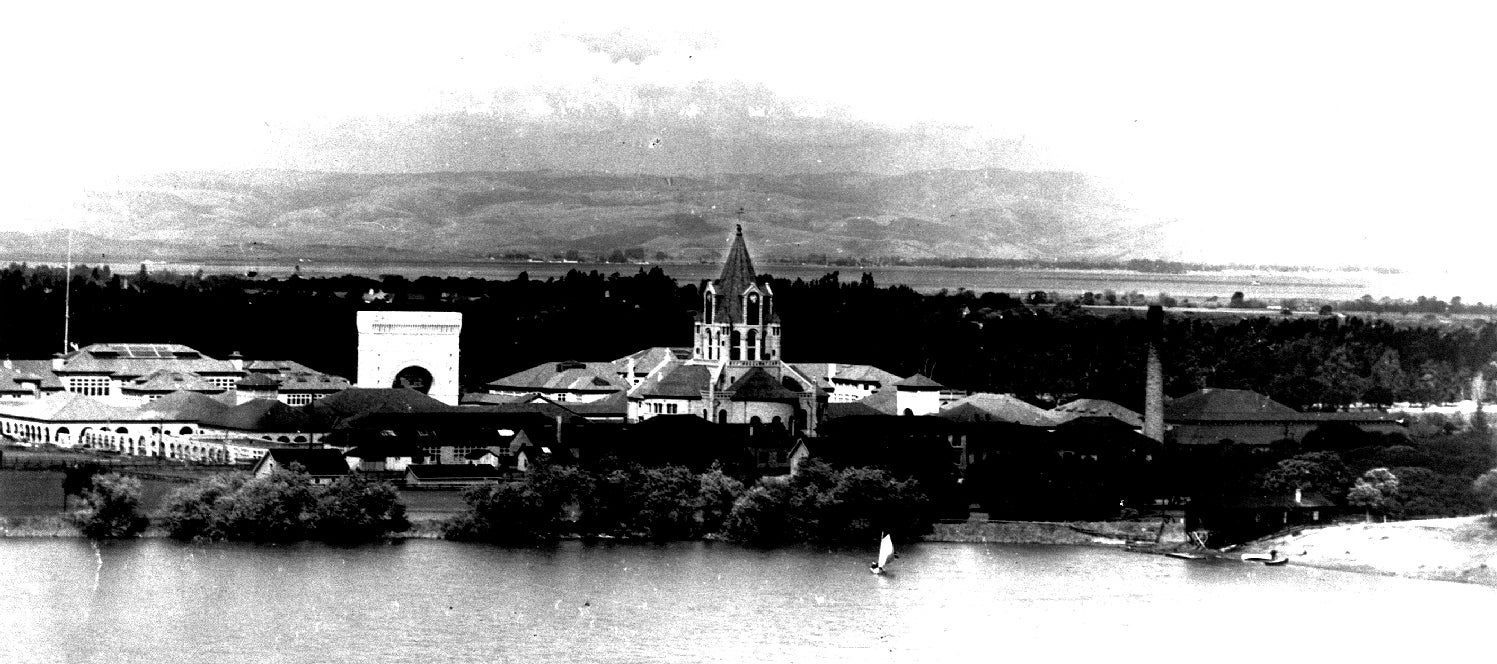
The notebook uses two photographs from data/images/ to give ground-level context for the satellite workflow: a historical view of Lake Lagunita and a recent rainy-season view from February 2023. Together, they help students connect what a satellite records from above to visible conditions on the ground.
What You Should Understand
By the end of the notebook, you should be able to:
- Explain the difference between searching for available imagery and ordering downloadable raster files.
- Authenticate to Planet in Colab with Secret Manager.
- Load and visualize a GeoJSON area of interest.
- Use Planet SDK filters for AOI, date range, and metadata such as
clear_percent. - Inspect Planet scene metadata before choosing imagery.
- Map scene footprints to understand image coverage.
- Sort scenes by quality and reduce a set of candidate scenes to scenes that add useful AOI coverage.
- Build an Orders API request with clipping, NDVI band math, and compositing tools.
- Monitor an order, download completed files, and visualize the resulting GeoTIFFs.
Before You Start
You will need:
- A Google Colab session.
- Access to a Planet account and a Planet API key.
- The notebook file
data/planet_SDK_101_LakeLagunita.ipynb. - The AOI file
data/lakelagunita.geojson.
In Colab, open Secret Manager and create a secret named PL_API_KEY. Paste your Planet API key as the secret value, then enable notebook access for the notebook.
Do not paste your Planet API key directly into a markdown cell, code cell, screenshot, or shared notebook output. API keys are private credentials.
Code Highlights
Installing
The first code cell installs the packages needed for the workshop:
planetfor the official Planet SDK.rasteriofor reading downloaded GeoTIFF files.foliumfor interactive maps.shapelyfor polygon overlap calculations.matplotlibfor raster visualization.nest_asyncioso asynchronous SDK calls work cleanly in Colab.
Importing
The import section separates standard Python tools from geospatial and Planet-specific tools. Pay special attention to these Planet SDK imports:
from planet import Auth, OrdersClient, Session, data_filter, order_request, reporting
These objects handle authentication, search filters, order creation, order monitoring, and order downloads.
Authenticating
The notebook reads the API key from Colab Secret Manager:
API_KEY = userdata.get("PL_API_KEY")
It then stores the key in environment variables so the Planet SDK can use it without printing the key.
Testing
The testing section runs a small SDK search before the main workflow. This helps confirm that the API key works and that Colab can communicate with Planet before students spend time debugging later cells.
AOI With Visualization
The notebook loads data/lakelagunita.geojson, extracts the first polygon geometry, and maps it with Folium. This introduces the AOI as both a data object and a visible search boundary.
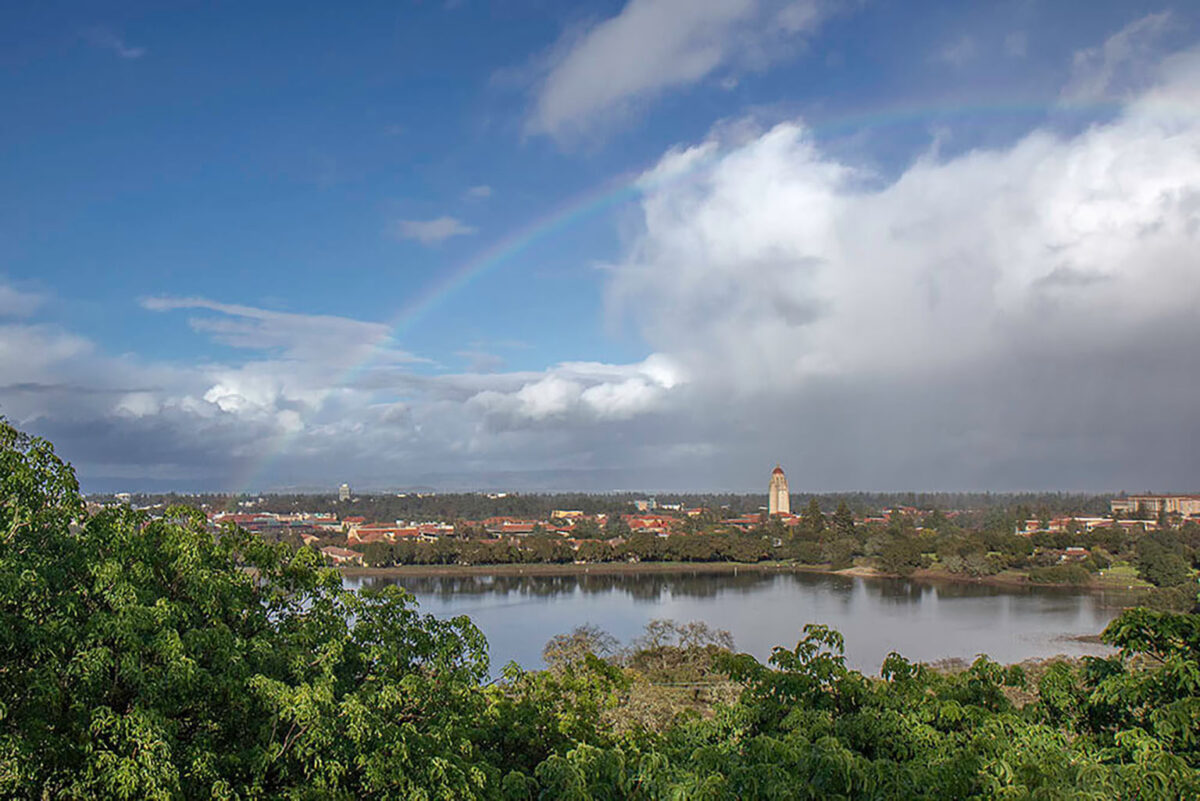
This recent photograph is especially useful for the AOI section because it shows why the 2022-2023 rainy season is an interesting search window. The GeoJSON AOI gives Planet a precise search boundary, while the photo helps students imagine the surface conditions they are trying to observe from satellite imagery.
Search
The search section uses SDK filter helper functions instead of manually writing a REST API request. It keeps the source notebook's main search settings:
- Item type:
PSScene - Start date: December 10, 2022
- End date: September 30, 2023
- AOI: Lake Lagunita GeoJSON polygon
Report Results and Metadata
The reporting cells print scene IDs, acquisition dates, clear_percent, and cloud_cover values. The metadata section also prints the available metadata keys so students can see what fields Planet provides and what fields might be useful for filtering or sorting.
Footprints Visualization
The notebook converts search results into a GeoJSON FeatureCollection of scene footprints. Students then map those footprints over the AOI to see that a satellite scene usually covers a much larger area than the study site.
Filtering: AOI, Date, and Clouds
The notebook adds a metadata filter:
clear_percent_filter = data_filter.range_filter("clear_percent", gt=80)
This keeps scenes where Planet estimates that more than 80 percent of the scene is clear.
Sorting Quality
The notebook sorts filtered scenes by clear_percent, from highest to lowest. This teaches students that filtering and sorting are different operations: filtering removes records, while sorting ranks the records that remain.
Reducing to Coverage
The notebook groups scenes into roughly 30-day windows and selects scenes that add new AOI coverage. This keeps the order smaller and helps students connect scene footprints to practical ordering decisions.
Creating an Order
The order-building function turns selected scene IDs into a Planet Orders request. It uses order_request.product() for the imagery product and order_request.build_request() for the final order dictionary.
Tools: Clip and Band Math
The notebook includes three Planet Orders tools:
cliptrims imagery to the Lake Lagunita AOI.band_mathcalculates a scaled NDVI band.compositemerges scenes in each order group.
The NDVI expression uses near infrared and red bands:
(b4-b3)/(b4+b3)*100+100
The multiplication and addition scale NDVI into an 8-bit output range that is easier to store and display.
Ordering, Monitoring, and Downloading
The notebook includes a safety switch:
SUBMIT_ORDERS = False
Students can run the search, filtering, and order-preview cells without submitting real orders. When they are ready and have confirmed the order request, they can change the value to True.
The ordering function creates the order, waits for completion with the SDK, and downloads the finished files into a local folder.
Visualization
The final visualization cells search for downloaded composite.tif files, open them with rasterio, and display the scaled NDVI outputs with Matplotlib.
Suggested Student Workflow
- Open the notebook in Colab.
- Add the Planet API key to Secret Manager as
PL_API_KEY. - Run installation, import, authentication, and testing cells.
- Load and map the Lake Lagunita AOI.
- Run the base search and inspect the result count.
- Add the
clear_percentfilter and compare result counts. - Map scene footprints and inspect metadata.
- Review the reduced scene groups and order request preview.
- Change
SUBMIT_ORDERSonly when ready to submit real Planet orders. - Download and visualize the completed NDVI composites.
Submission Guidance
If this workshop is assigned for submission, export a PDF that includes:
- The notebook title.
- A screenshot of the AOI map.
- The number of scenes returned by the AOI/date search.
- The number of scenes returned after the
clear_percentfilter. - A screenshot or printed preview of one order request.
- A short note explaining why the notebook uses a safety switch before submitting orders.